tags: #intro #stay-safe
Summary: if you must use browser extensions, use a different browser, or browser profile, for “serious” work (such as logging into your bank account).
Both Firefox and Chrome browsers have a vast ecosystem of “extensions” (or “addons”). People install them to modify their browser’s behaviour in various ways. The most popular addons for Firefox are ad blockers (I use and recommend uBlock Origin), download helpers, and so on. I imagine Chrome would be similar; I don’t use it so I don’t know.
If at all possible, avoid Chrome unless you need it for specific sites. It’s too tied into Google and is not a friend of “privacy”.
However, there are some sites that simply will not work properly with Firefox. This is a result of the site’s developers not testing properly, but there’s nothing we can do about it. If you come across a site which doesn’t work in Firefox, by all means use Chrome, but use Chrome only for that site and any other similar sites. Avoid using it for your general web browsing.
Firefox has another great advantage, especially in the context of this blog post. Firefox supports the use of profiles, which we will come back to in a minute.
A browser addon/extension modifies the behaviour of your browser.
Remember that the browser is a normal program running on your computer with access to all your files just like any other program that runs on your computer.
We, of course, trust the browser (and other programs) not to violate our privacy and our security. By and large, this trust is not misplaced. However, when you install a browser add-on or extension, you are adding programs that did not come from trusted sources.
Yet, these extensions have the same powers as the browser, or Microsoft Word, or Libre Office, or any other program that you use. But they are developed by essentially random people on the internet. Yes, they are open source. And yes, they are routinely vetted by the browser manufacturers to make sure that they are not malicious. But that’s not a cast iron guarantee of any kind.
That abuse of trust is exactly what happened in what we will call the ShadyPanda incident.
The attackers behind this incident took advantage of the fact that Google and Microsoft vet extensions rigorously when they are first submitted to the extension store. But subsequent submissions, with modifications and patches and new features, are not vetted as rigorously compared to the initial vetting for a new extension.
This is especially true in the case of extensions with a long lifetime and many good reviews from satisfied users. These attackers created a few genuinely useful extensions in 2018, and maintained them for more than half a decade before adding malicious code to them.
Some snippets from that article:
A seven-year malicious browser extension campaign infected 4.3 million Google Chrome and Microsoft Edge users with malware, including backdoors and spyware sending people’s data to servers in China
and
“No phishing. No social engineering. Just trusted extensions with quiet version bumps that turned productivity tools into surveillance platforms,” the threat hunting team said in a Monday blog.
and most importantly:
It can also inject malicious content into any website, including HTTPS connections.
First, avoid using any extensions at all, ideally. The vast majority of people get by without using any extensions, so it shouldn’t be that difficult.
But adblock is important, and downloadhelper is important – for me. For you, some other extension may be important. So it’s not easy to say “avoid all extensions”.
Before this incident happened, I would have said “stick to extensions which are well known, which have been well reviewed, which have lots of users and so on”. But as you can see clearly from this example, even long-held reputation is not a guarantee that you will be safe forever.
What we need is a way to use extensions, but keep some sites (e.g., your bank) protected.
Firefox profiles do exactly that – help you keep sites that need extensions (e.g., most normal browsing, or “reading”), separate from sites that don’t (e.g. “bank”).
Firefox has always supported profiles, but they were neither easy nor convenient to manage/maintain. (Strictly speaking, there was a GUI of some sort, but it was not pretty, and it seemed more something a developer threw together for his own use rather than a core feature that everyone could be comfortable with.)
But now, as of a couple of months ago, this feature has been given a decent GUI and some usability improvements. (You need the latest Firefox to use this. If you updated your Firefox any time after October 2025, you should have this feature.)
It’s a great feature and can be used very effectively to limit the damage if indeed you end up using an extension that later on turned out to be harmful. For example, you don’t need any extensions for your bank – so don’t add any extensions in the profile dedicated to banking.
A word of WARNING. This is only an enabler. Nothing prevents you from loading up a lot of extensions in the “reading” profile and then logging on to your bank from that profile. There is a certain amount of discipline required from your side in order to maintain that separation.
Side note: It would be nice if Firefox had given us a mechanism to, let’s say, right-click and open a URL in a different profile. For example if somebody sends you a link via email then you may want to open that link in a different profile because you need, say, an ad blocker for that site. Unfortunately right now that feature doesn’t exist. Until Mozilla adds that feature, you have to right-click, copy the link, open the other profile and paste the link. So yeah … it is a little inconvenient right now, but it’s worth it.
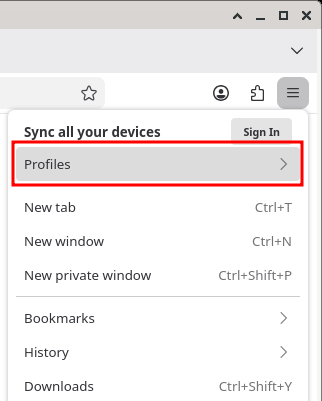
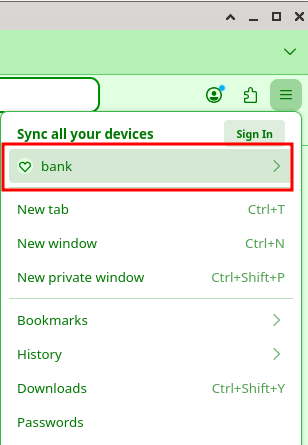
Click on the “hamburger” icon (as it is often called), then click on “Profiles”:
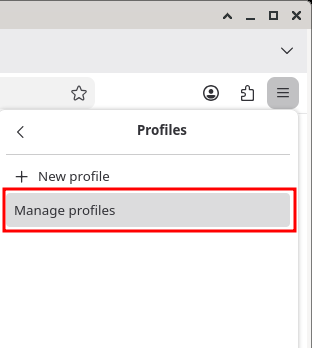
Now click “Manage profiles”:
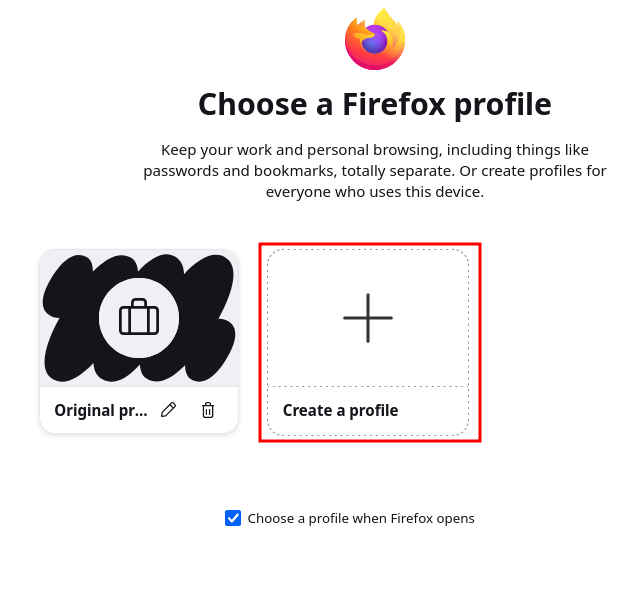
“Create Profile”:
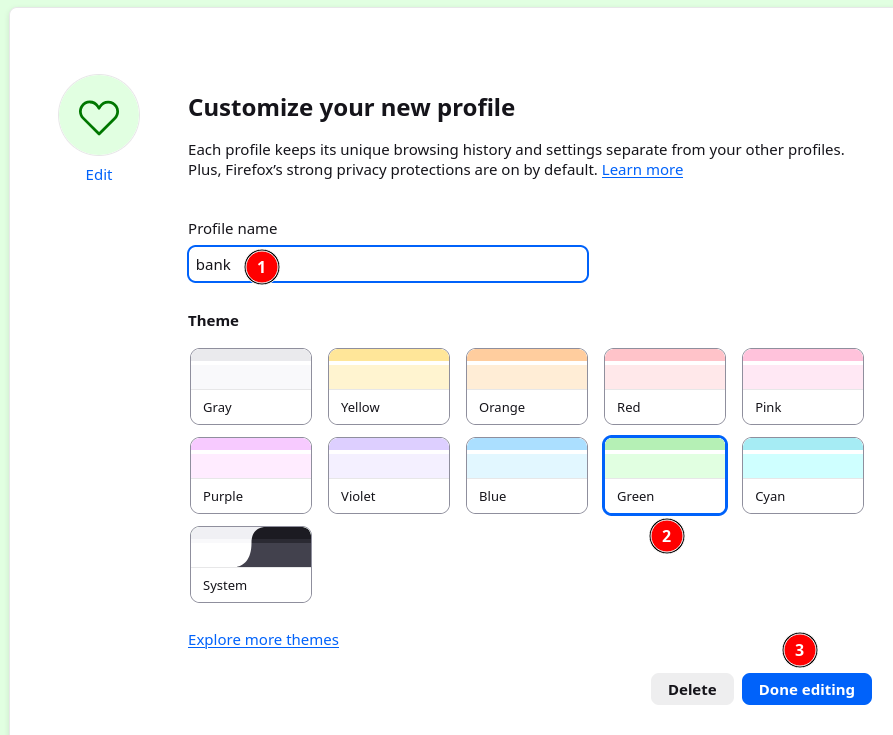
First, type in the name of your profile (any simple word that means something to you). Next, pick a color. Finally, click “Done editing”.
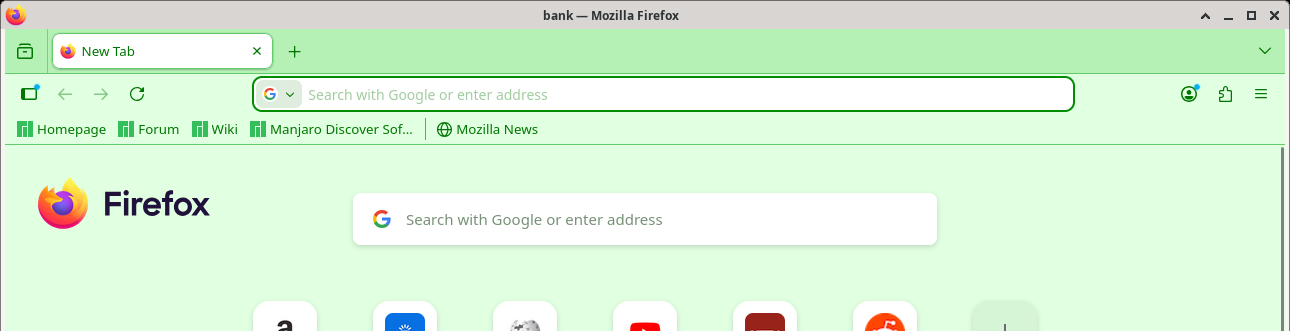
A new browser window will pop up, using the color you picked.
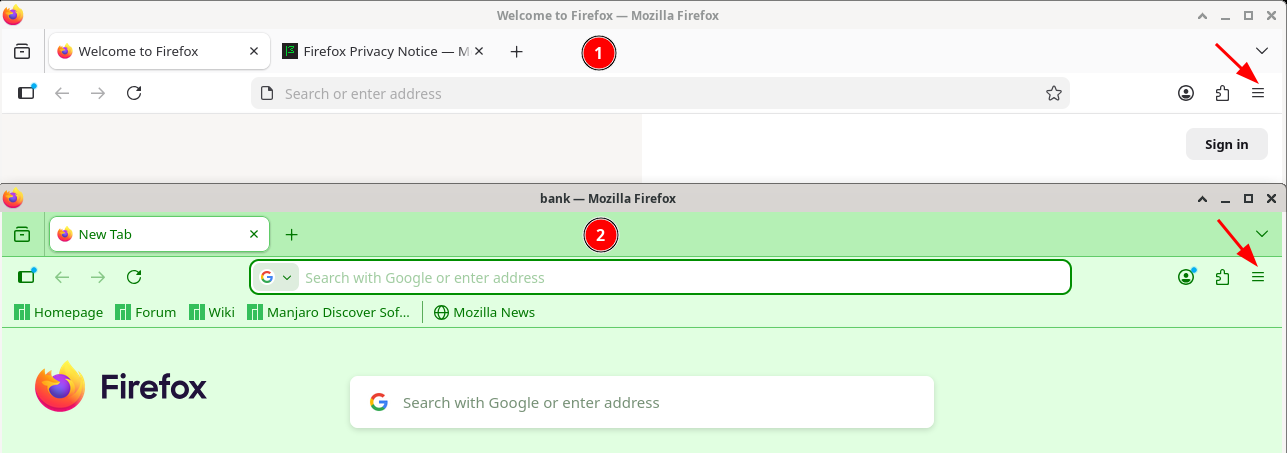
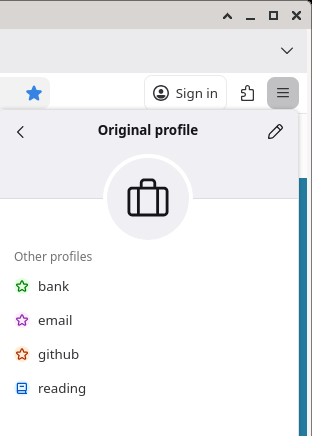
Your original window is still there; it hasn’t gone anywhere. (Here I moved them so you can see both). You can click either of the hamburger icons to manage your profiles if needed.
For example, here we’re doing it from a window which is using the “bank” profile:
You can either switch to the original profile, create a new one, or manage your profiles.
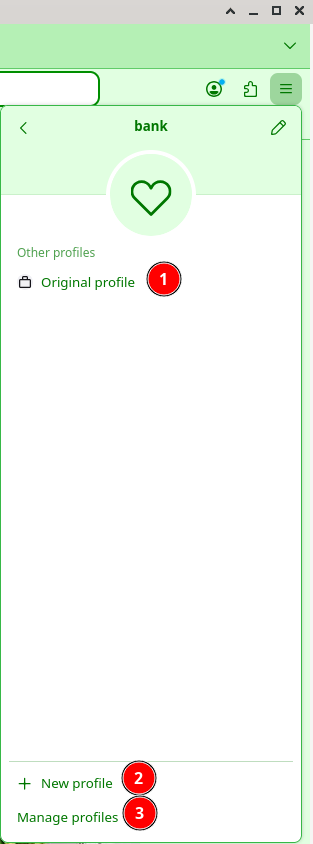
You can have many profiles. When you click on one, if there isn’t already a window open for that profile, a new window will open up.
That’s it! Hope this helps someone.